

Developer
Getting started with Synod for Visual Studio Code
Status: In Review
From your first message to asking about your own files, in about fifteen minutes.
Getting started with Synod for Visual Studio Code
Audience: Someone who has Synod installed and wants to use it, from first message to reading their own files. Time: About 15 minutes. Version this guide describes: 0.1.0 (2026-11-04).
What Synod is
Synod is a chat assistant inside VS Code that runs on your own machine. It talks to the models and tools of your local Datum Core stack; nothing is sent to a cloud service.
In the next major revision, Synod will also work with a remote MCP server (a tools server on another machine), so the tools it uses will no longer have to run on your own machine.
Three parts work together:
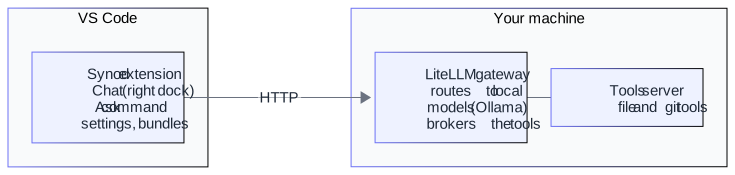
| Part | What it does |
|---|---|
| The extension (this guide) | The chat window, the Ask command, your settings, and the switches that decide what the model may do. |
| The gateway (LiteLLM) | One address for every local model, plus the tools. The extension only ever talks to this. |
| Tools server | The tools the model can call: read a file, search, show a git diff, and more. |
What Synod is not. It is separate from other AI chat clients, including VS Code’s built-in chat. It has its own settings, its own tool switches and its own conversation history, and it never edits their configuration.
Quick start
Five steps from a clean install to reading one of your own files.
Step 1. Find the chat
Synod lives in the Secondary Side Bar: the dock on the right, where VS Code’s own Chat and other chat clients also sit. Look for the Synod tab there.
If the right-hand dock is hidden, show it with View → Appearance → Secondary Side Bar.
Two other ways to open it:
Command (Cmd+Shift+P) | Result |
|---|---|
| Synod: Show Chat in Side Bar | Focuses the Synod tab in the dock. |
| Synod: Open Chat | Opens the same chat as an editor tab, which you can drag into its own window. |
Both show the same conversation; use whichever suits your layout.
One-time step: keep the tab. The first time, VS Code may show the Synod tab only while it is selected, so it disappears when you click another chat tab. Right-click the dock’s tab bar (or open its
...menu) and tick Synod. VS Code remembers this; you do it once.
Step 2. Sign in
Run Synod: Sign In and paste the gateway key. It is stored in your operating system’s keychain, never in a settings file. Synod: Sign Out removes it.
Step 3. Say hello
Type a message in the chat and press Send (or Enter). The reply streams in. Under it you will see the
model name and how many tokens it used.
You should see a reply within a few seconds to a minute, depending on the model, and a small tokens-per-second figure near the top of the panel.
Step 4. Let Synod see your files
By default the model can answer questions but cannot look at your files. To allow that, turn on two tool bundles:
- Run Synod: Manage Tool Bundles.
- Tick datum-workstation (read the files in your open folders) and, if you want git history, datum-dev.
- Press
Enter.
The list may show “0 tools in VS Code” for these. That is normal: the chat gets these tools from the gateway, not from VS Code. See Letting Synod use your workspace.
Step 5. Ask about a real file
In the chat, type:
Read the README in my workspace and summarise it in three bullets.
You should see a line appear above the reply, for example:
→ ide_read_file {"path":"my-project/README.md"} · 4210 characters
That line is the model calling a tool. Then the summary follows.
Nothing happened? If a line says
no tools offered: ..., it names the switch to turn on.
A tour of the parts
The chat
The chat is the main way to use Synod.
| Control | Where | What it does |
|---|---|---|
| Resize grip | Top right of the message box | Drag it up or down to make the message box taller or shorter. With the keyboard: focus it, then Up and Down move it in steps, Home and End go to the smallest and largest, and Esc or a double-click returns it to the default. The size is remembered. |
| Message box and Send | Bottom | Sends your message. While a reply runs, the button becomes Cancel and the box stays open: what you type then is added to the prompt being answered (Enter or Add to this prompt). See Adding to a prompt while it runs below. A message made only of symbols (a stray code fence, ????, <<<) is not sent: the text stays in the box and a hint says to add a few words. A single ? is allowed. |
| Commands | Message box | Type / to open the command menu (with Synod icons), or type /compact, /compact light, /compact focus, /compact purge, /compact undo, /reset, /keepawake, /models, /help and press Enter: see Commands in the message box: /compact and /reset. They are handled by Synod and never sent to the model. |
| Prompt history | Message box | Up and Down walk back and forward through what you have asked before (across all your conversations); Esc returns to a new prompt; Enter sends what is in the box, a recalled prompt as it was or as you edited it. See below. |
| Settings window (the gear) | Beside the model dropdown | Click the gear to open a window with Tools (the tool level), Autonomy, Thinking and Auto-tune, laid out in as many columns as the pane has room for; only the settings available for the model you chose are shown. These belong to the chat you are in: the model, Thinking, Tools, Autonomy and Auto-tune are remembered with each conversation, so changing one in a chat leaves the others as they were, and reopening a chat brings its own back. A new chat starts from the defaults (the synod settings below), never from the chat before it; a chat you copy keeps the copy of its settings; /reset puts a chat back on the defaults. Esc closes it and puts you back on the gear, and it remembers whether it was open. |
| Model dropdown | Controls row | Chooses the model for the next message. Marks show which models are already loaded in memory (fast to answer), which are cold (the first reply is slower) and which are too large for free memory. |
| Thinking switch | Settings window | Lets a model reason before it answers. Off by default: thinking can spend minutes on a simple question. Models that cannot reason ignore it. |
| Rate | Header | Live tokens per second while a reply is generated. |
| Gauges | Header | Memory, CPU, GPU, disk activity and temperature of your machine while a model runs. Local mode only. Hover over a gauge (or focus it with Tab) to read its value, what it measures and when it turns amber or red. Use the arrow beside them to collapse; while they are collapsed Synod stops asking the stack for readings, except during a reply. |
| Status strip | Above the message box | While a reply is on its way: an animated icon, what the model is doing in words, and how long it has been. See below. The same state shows on the Synod tab (its icon) and in the side-bar view (its title and a badge). |
| Autonomy | Settings window | ask each time (default), auto-read or auto-act (in policy): how far the chat goes before it asks you (see Autonomy: how far the chat goes before it asks). |
| Auto-tune | Settings window | Auto-tune on / off: let Synod choose which tool groups to offer and whether to use thinking for each message (see Auto-tune: what is offered and spent on each message). |
| Tool level | Settings window | Tools off, Tools: read (default) or Tools: act (asks first): what the model may do in this window. Act lets it propose changes; each one asks you first (see Letting the model make changes (Act level, with your approval)). |
| Tool lines | Above a reply | One line per tool the model called: the tool, its arguments, and the size of the result or the error. A finished line has show result: click it to read exactly what the tool returned (the same text the model was given), and hide result to close it. Use it to check an answer, especially from a small model (see below). |
| Timestamps | Above each message | When you sent it, and when the reply finished. |
Prompt history. In the message box, Up recalls your previous prompt and keeps going back; Down comes forward again, and past the newest it returns to whatever you had typed before you started walking. Esc, while you are walking, returns to a new prompt (what you had typed, or empty). Enter sends what is in the box: press it on a recalled prompt to run it again, or edit it first and press Enter to run the edited version. The history covers all your conversations, so you can re-run a prompt in a new conversation or after switching model. In a prompt that has several lines, Up and Down move the cursor as usual until it is on the first or last line, and then walk the history; Shift, Ctrl, Alt and Cmd with the arrows are left alone. Very long prompts and old attached-context blocks are not offered. (The Ask command’s input box is VS Code’s own and has its own history.)
The status strip. From the moment you send, a strip above the message box shows what is happening, so a long wait never looks like a hang. The icon is always the same drawing (a brain, its brainstem and spinal cord); the colour and the motion change, and the words beside it say the same thing, so you never need to rely on colour.
| Icon | You see | It means |
|---|---|---|
 | The icon is indigo and fills up. | Sending: the request is on its way (shown for a moment). |
 | The icon is teal, with lines drawing in toward the middle. | Compacting: the conversation is being shrunk before your message goes out (the /compact commands, or automatic compaction when a message would crowd the window). A summary waits on the model, so this can take a while. |
 | The icon is orange and drains upward. | Purging: /compact purge is applying the exchanges you confirmed. Nothing is deleted. |
 | The icon is gold and pulses. | Loading the model into memory. Only shown when the stack says the model is not loaded. A large model can take a minute or more. |
 | The icon shows cyan ripples. | Waiting: the model is reading your message, or is queued behind another request. After 45 seconds the strip says it is still working, that Cancel is available, and when the request will give up. |
 | The icon flickers violet. | Thinking (the Thinking switch is on). The token count is an estimate (~). |
 | The icon is plain and moves left, then right. | Using a tool: the tool’s name is shown. |
 | The icon is green and runs downward. | Replying: the answer is arriving. |
 | The icon is pink and flickers. | The model looks confused: it is repeating itself, producing garbage, asking for tools that do not work, or returned nothing. A warning only: the reply keeps going and you decide what to do. |
   | The icon is amber and still. | Finished. Grey with a bar means you cancelled it; a break across the cord means it was cut off at the limit. |
 | The icon is a red cross. | Error: Synod could not do it (cannot reach the stack, key rejected, timed out, server error). |
On the Synod tab and the side-bar view. When Synod is open as an editor tab (Open Chat), the tab’s own icon shows the same state and moves while a reply is on its way, then settles for a few seconds and goes back to a quiet icon (an error stays until your next message). A side-bar view cannot animate an icon, so while a reply runs it shows the state’s name beside its title (Thinking, Waiting, Compacting) and a small 1 badge on the Synod icon; afterwards it shows the outcome (Done, Cancelled) for a few seconds. The badge counts replies running plus replies waiting for the model; with more than one chat busy the title says how many run and how many wait, and the tab shows the most advanced state of any chat. The editor tab’s own title carries the same count: Synod (3) means three replies are running or waiting, across all your chats, and it goes back to Synod when none are.
Adding to a prompt while it runs
You do not have to wait for a reply to finish to say more. While one is running, type in the box and press Enter (or Add to this prompt): the chat shows Added to this prompt, and the model gets your text at its next step, that is after the next round of tool results and before its next request. It costs no extra model call. The chat then says The model has your addition, and when the reply is saved the addition is kept with the prompt it was made to (shown under it as Added while it ran), so the model sees one amended request in later turns. Compaction, undo and Clone treat it as part of that prompt.
- A reply with no step left (one plain answer, no tools) has nowhere to take the addition. When it ends, the addition is sent as your next message and the chat says so.
- If you cancel, or the reply fails, nothing is saved and an addition is not sent on its own: the chat names it so you can send it again.
- Add and restart. If no step comes for a while (20 seconds;
synod.steering.restartOfferSeconds), the chat also offers Add and restart: it stops the answer in progress, keeps the steps already done (a tool call is not run again) and keeps your place (the turn does not rejoin the line, so another chat cannot take the model in between), then asks again with your addition. The unfinished answer stays above the new one, collapsed, as a Discarded draft; it is not saved. Measured here on a 4B model with an 8,000-token prompt: the restarted request took about 20 seconds, against about 80 seconds from a changed start, because the engine reuses what it has already read. - A
/commandtyped while a reply runs is still a command, not an addition. - Small models can weight the original request more: when the first prompt said “only” something, the smallest local models took the addition into account in about five of six tries in a check run on 2026-10-23, the larger ones every time. If an answer misses it, say it again.
The pictures above are the real icons, one frame each: in the chat they move. They are generated from the extension’s own source (npm run docs:icons), so they cannot drift from the product.
When the reply ends, the strip shows the result for a few seconds, then hides; the reply’s info line keeps the small icon and the total time. An error stays in the strip until your next message. If your computer is set to reduce motion, the icon shows a still picture in the same colour.
What the colours in the log mean. Four kinds of thing share the log, and each looks different so you can tell them apart at a glance:
| What | How it looks |
|---|---|
| Your messages | Plain text in the theme’s link colour (blue in most themes), with no box. |
| Synod’s replies | A box with an outline, in the editor’s widget colour. |
| A tool call | A muted off-yellow line starting with an arrow: the tool, its arguments and the size of the result. |
| What Synod itself says | A muted purple ground with a purple edge: the notice lines below, and the notes and reports it prints (for example the answer to /help or /models). An error keeps a red edge. |
The notice lines have a name in brackets instead of a tool name:
(auto-tune)says which tool groups were offered for this message, or that it widened the offer and repeated the request (see Auto-tune: what is offered and spent on each message).(tools)says why there are no tools for this message: the level is off, a bundle is off, the tool server could not be reached, or the model does not take tools.(budget)says that some tool calls in a step were not run because the turn’s tool-output budget was used up, and how many results were cut to fit.(autonomy)says why the chat stopped using tools and answered: the time allowed ran out, too many calls were refused or unusable, the output allowed was used up, or the round limit was reached.
Formatted replies. Replies are shown with Markdown formatting, drawn as the reply streams in: headings,
bold, italic, strikethrough, inline code, bulleted and numbered lists (including nested ones),
block quotes, tables, rules and links. A code block has a Copy button (hover over it). A block fenced as a shell (bash, sh, zsh, shell or console) also has Run in terminal: it types the command into a terminal named “Synod” and stops there, so you read it and press Enter yourself. Nothing is run for you, and nothing from the terminal is sent back to the model. A block of several lines asks first, because a shell runs every line but the last as soon as it is typed. A half-finished
list or code block simply looks unfinished until it closes. Your own messages stay plain text.
Two things are deliberately not done, for safety: links open only if they are http, https or mailto
(anything else shows as plain text), and images are never loaded (you see their description). Anything that
looks like HTML in a reply is shown as the literal text, never run.
A reply that was stopped at the length limit is marked cut off at the limit, so you never mistake a partial answer for a complete one.
Ask
Synod: Ask is the quick, one-shot route: you type a question in a box at the top of the window, and the answer is written to the Synod output channel (View → Output → Synod, or Synod: Show Output).
If a reply is already running when you ask, Ask waits its turn: a notification says it is waiting, and you can cancel it there; it runs as soon as the reply in progress finishes (replies take turns, so the model is never asked for more things at once than your machine has slots for: one on a small machine, more on a larger one; the stack says how many, and Synod asks it rather than guessing). With more than one slot, chats on different models run side by side, but if the second model is not loaded the engine may have to swap models, and the chat says so when it starts. Other chats are not locked while a reply runs: you can switch, start a new chat or clone one, and the reply carries on in its own chat; the conversation menu shows which chats are running, waiting for a slot or waiting for your approval.
What makes Ask different is that it offers to attach context first. A picker lets you include:
| Option | What is attached |
|---|---|
| Selection | The text you have selected. |
| Active file | The file in the editor (clipped at 12,000 characters). |
| Active directory | A listing of the file names in that folder. |
| Workspace: name | A listing of an open folder’s top level. |
| Added: name | A folder you added with Synod: Add Context Directory. |
Attached context is pasted text. It is not tool access: a directory listing tells the model what the names are, nothing more. Ask uses the same tools as the chat when their bundles are on.
Use Synod: Clear Context Directories to remove the added folders.
Which should I use? The chat for conversations and anything that needs the model to look at files; Ask for a quick question about the text you have selected.
Models
These models are examples. Synod does not come with models. You choose which language models to use and download them onto your own machine; the table below shows the defaults the stack is set up with, and your list will differ. In the next major revision, Synod will also be able to use the models of Datum Core.
Synod works with the models your stack serves. The defaults are four sizes of one model family, each used by its own name:
| Model | Use |
|---|---|
qwen3.5:0.8b | The smallest and fastest; simple questions. |
qwen3.5:2b | Quick drafts. |
qwen3.5:4b | The default: a balance of quality and speed. |
qwen3.5:9b | The most capable and the slowest; needs the most memory. |
Each of these also has a short name on the gateway: datum-local-nano, datum-local-grunt, datum-local-mid (the default) and datum-local-heavy. Either name works.
Check lists against the tool. Small models can drop items from a list a tool returned, or mistype an id. The tool was right every time. When a list matters, open show result on the tool line. The chat’s instructions tell the model to include every item and copy names, ids and numbers exactly; that helps, and it does not make a small model reliable.
The log follows a reply. While a reply arrives, the conversation keeps scrolling so the newest text stays in view. Scroll up to read something earlier and it stays where you put it, and a ↓ Latest button appears at the bottom right of the conversation; click it, scroll back to the bottom, or send a message, and it follows again.
Change the model for the current chat from the dropdown, or set the default with
Synod: Select Model (it lists what the gateway offers) or the synod.model setting.
Note on context size. Local models run with a window of about 32,000 tokens (roughly 130,000 characters for everything: your question, the earlier conversation, the tool definitions and the reply). Synod reads the window from the stack and sizes the reply allowance, the history it sends and the tool output to fit it. When a prompt would fill 75% of the window the chat tidies the conversation first, and at 90% it summarises the earlier part; both are announced and nothing is deleted (see Conversations).
Conversations
Everything you say is saved in a conversation, and you can have as many as you like. The current one’s name is at the top of the chat.
| To do this | Do this |
|---|---|
| See which conversation you are in | Read the name at the top of the chat. |
| Rename it | Click the name, type, press Enter (or Escape to cancel). |
| See all your conversations, and how many | Click the small arrow beside the name. The list shows each one’s name, when it was last used and its number of turns. |
| Switch to another | Click it in the list. |
| Start a new one | + New in the list, or Synod: New Conversation. If the current one is still empty it is reused, so clicking again never piles up empty conversations. |
| Clone one | Clone beside it. Its turns are copied into “ (copy)” and you switch to the copy; the two then go their own ways. |
| Delete one | Delete beside it. You are asked first. |
Names. A new conversation is named from your first message (for example, “Can you read the files in my workspace?” becomes Read the files in my workspace). It is a plain rule, not a model, so it is instant. A name you type yourself is never replaced.
Deleted conversations are not erased. Delete moves a conversation to a Deleted folder. In the conversation list, open Deleted to see what is there, with when it was deleted, and:
- Restore brings it back as it was.
- Delete for good erases that one permanently, after a confirmation.
- Erase all deleted empties the folder, after a confirmation.
Only the last two cannot be undone.
All of this is also in the Command Palette:
| Command | Does |
|---|---|
| Synod: Switch Conversation | Lists your conversations (with the count) and switches. |
| Synod: Rename Conversation | Renames the current one. |
| Synod: Clone Conversation | Copies the current one and switches to the copy. |
| Synod: Delete Conversation | Asks which, then confirms. |
| Synod: Show Deleted Conversations | Restore, delete for good, or erase all. |
Several chats at once. You can switch, start a new conversation, clone or rename while a reply runs in another chat. Each chat keeps its own reply, model and tool settings, and they share the engine: one runs while the others wait their turn, and a reply that has to wait shows its place in line. A chat with work going on is marked in the list by a coloured edge (blue: running, yellow: waiting for the model, orange: waiting for your approval) and its line says which; the list’s title adds how many are busy, for example Conversations (5) · 2 busy, and the Synod tab shows the total. A new chat you start while another is busy is a new chat, and it stays in the list even before it has a saved turn. A chat with a reply running or waiting cannot be deleted; wait for it or cancel it first.
What the model sees. Only the newest part of a long conversation is sent with each message (default
8,000 characters, synod.historyMaxChars). The full conversation stays on disk. The chat and Ask share the
current conversation.
Where they are kept. One plain file per conversation in
~/.local/share/photon-datum/memory/conversations/ (.ndjson), and deleted ones in
~/.local/share/photon-datum/memory/conversations-deleted/. Set DATUM_HISTORY_DIR to keep them somewhere
else.
Letting Synod use your workspace
How it works

- The extension publishes the folders open in this window to a small file on your machine, so the tools know what you have open.
- When you ask, the model may request a tool. The extension runs it through the gateway, shows you the call, and gives the result back to the model.
- The model answers using what it read. This can repeat a few times in one reply.
What the model can use
Only read-only tools are offered. The default list:
| Tool | Does |
|---|---|
ide_roots | Lists the folders you have open. |
ide_list_dir | Lists the files in a folder. |
ide_read_file | Reads a text file (large files are read in pieces). |
ide_search_files | Searches file names and contents. |
git_status, git_log, git_diff, git_show | Inspect the state and history of a git repository. |
datetime | Today’s date, the time, the time zone and the UTC and Unix time. A model cannot know these, so it asks. |
version, ping | The tool server’s version and build, and whether it answers. |
workspace | The working folder, the repository root, the branch, the remote, the git status and the last commit. |
token_count | How many tokens a text is for a given model. |
model_info | What the gateway knows about a model: its context window, and whether it takes tools or thinks. |
runtime_status | What the engine is doing now: which models are in memory, RAM and swap, memory and CPU pressure, and whether a given model is already loaded. |
Change the list with synod.chatTools.allow. Each tool costs part of the model’s small window, so keep it
short.
A tool is offered only if all three are true:
- it is in the allow list;
- the tool itself is marked read-only by the server; and
- its bundle is switched on.
Bundles: the switches
A bundle is a named group of tools that you switch on or off together.
| Bundle | Contains | Default |
|---|---|---|
datum-core | The basics every user gets. | On |
datum-workstation | The ide_* file tools (they act on your machine). | Off |
datum-dev | The git_* tools. | Off |
other | Tools no bundle claims. | On |
Switch bundles with Synod: Manage Tool Bundles. Your choices are stored in the synod.mcpBundles
setting. List MCP Tools by Bundle writes the full picture to the output channel.
A bundle switch controls what Synod uses. It does not change what VS Code’s own chat or other AI clients can see.
Limits that keep replies fast
| Setting | Default | Meaning |
|---|---|---|
synod.chatTools.maxRounds | 6 | How many times the model may ask for tools in one reply. |
synod.chatTools.maxResultChars | 6144 | The most of one tool result the model is given. The rest is cut, and the model is told how to ask for more. |
synod.chatTools.maxTurnChars | 12288 | The most tool output in one reply, in total. After that the model must answer with what it has. |
If the model keeps asking for the same thing, the repeat is refused. If a limit is reached, the model is asked to answer with what it has read and to say what it could not check.
Folders the tools will not open
Folders named confidential or export, at any depth and in any letter case, are off limits to every
tool, and are not even listed. This protects client material. You can add more names on the machine that runs
the gateway with the DATUM_IDE_DENY environment variable (for example private). Files such as .env,
keys and certificates are also never read.
Turning workspace publishing off
synod.publishWorkspace (on by default) controls whether the open folders are published. Turn it off and
the file tools see nothing. The published file is ~/.local/state/datum/ide-workspaces.json, readable only
by you; remote and virtual workspaces are never published.
Letting the model make changes (Act level, with your approval)
By default the model can only read. To let it propose changes, choose Tools: act (asks first) under the
message box. Synod asks once to confirm the switch; the choice lasts for that window and starts again at read
after a reload (the setting synod.chatTools.level changes where a window starts).
At Act the model is also offered the tools in synod.chatTools.allowWrite. By default:
| Tool | Does |
|---|---|
ide_write_file | Creates or overwrites a file. |
ide_patch_file | Replaces text inside a file. |
Deleting and pushing are not in the default list; add them only if you want to be asked about them.
Every change asks first, every time. When the model asks to change something, a dialog shows the tool, the arguments it will run with and, for file tools, the tool’s own dry run (“would create … (17 bytes)”). Nothing runs unless you choose Approve. Closing the dialog, or anything else, is a no. The model is told a decline was the answer and not to try again unless you ask. While it waits for you, the status strip says Waiting for your approval. Approving one change does not approve the next.
- Changed files are recorded. For each file the model writes or patches after you approve, Synod reads the file just before and just after and keeps both with that reply. The chat lists it above the reply (Created notes/todo.txt, Overwrote …, Patched …) with a View diff link that opens VS Code’s own diff editor from what was kept, not from the file as it is now. The same list is there when you reopen the conversation. The record covers what Synod itself changed, with your approval; it does not see changes made some other way. A file over 60,000 characters is kept cut (the diff title says so), and a file Synod could not read still gets a line, without a diff. The kept text is for you: it is never sent to the model.
- If the tool’s dry run fails (a protected folder, an ambiguous path), you are not asked: the model gets the error.
- The level can be changed only between replies.
- The Ask command uses the same level and the same dialog.
What the model remembers of what it read
The conversation keeps a short record of each tool the model called (which tool, the arguments, the time and how much
came back). On the next message the model is given that as a note which says it may be out of date and to call
the tool again for the current state, so “what is in it now?” always looks again. The result itself is not
sent back: a file, web page or ticket can contain text written to pass for an instruction, and in a system note it
could. synod.chatTools.rememberChars (0 by default) saves the first part of each result for you; when you set it
above 0, the sample is sent back too, quoted, with its words joined by ^ and a warning, and the risk is yours. The note counts toward synod.historyMaxChars and goes when its turn
goes. The full result is never saved.
Autonomy: how far the chat goes before it asks
Autonomy is separate from the tool level. The tool level says what the model is allowed to use; Autonomy says how many times it has to ask you. It never goes beyond the tool level.
| Level | What changes |
|---|---|
| Ask each time (default) | Reads run within the usual limits; every change opens the approval dialog (Letting the model make changes (Act level, with your approval)). |
| Auto-read | The chat carries on reading until it has answered: up to 16 rounds and 4 minutes, with older tool results shortened as it goes so the window does not fill. It stops, says why (“Stopped: …”) and answers with what it has if two tool calls are refused, a call repeats, the time or rounds run out, or the stack errors. Changes still ask. |
| Auto-act (in policy) | As auto-read, and a change runs without a dialog only when it is inside your policy. Needs the tool level Act. |
Raising the level asks you once, saying what will change. The choice lasts for that window and cannot be changed while
a reply runs; synod.autonomy.level sets where a window starts.
The policy for auto-act (all empty by default, so nothing is auto-approved until you name where):
synod.autonomy.allowFolders: absolute folders where file changes may run unasked. Symlinks are resolved; a path with aconfidentialorexportfolder in it always asks.synod.autonomy.autoTools: which tools may run unasked at all (default: file write, file patch). Delete, push, bulk and restore tools never do, even if listed. Notes and status changes can’t be tied to a project from their arguments, so they always ask.- By default only a new file runs unasked (the tool’s own dry run must say it “would create” it); overwriting asks
unless
synod.autonomy.allowOverwriteis on. synod.autonomy.maxAuto(5): the sixth change in one reply asks. Decline anything and the rest of that reply asks.
Each unasked change shows on its tool line as auto-approved: folder … and is written to
~/.local/state/datum/vscode-autonomy.jsonl (time, tool, arguments, the rule that allowed it, the dry run, the model).
That log is always on. Anything outside the policy simply opens the dialog as usual.
Auto-tune: what is offered and spent on each message
Tool definitions take about a third of a small model’s window on every message, and thinking can cost thousands of tokens on a simple question. Auto-tune (on by default while Synod is in development; the toggle beside the model dropdown) decides for each message, by fixed rules and never by asking a model:
- Which tool groups to offer: files and git. Your message is checked for words and file names that point to a group (“README.md”, “commit”, “epics”); the groups the previous reply used stay on, so a follow-up keeps its tools; a short follow-up in a continuing conversation (“and the second one?”, “try again”, “what about that?”) keeps everything, so refining a request is never starved of tools; a short message that points to none is a plain question and gets no tools; a long one that points to none gets everything. Nothing is remembered from turn to turn: every message starts from the full set. Tools you added yourself are never touched.
- The small tools:
datetime,version,workspace,token_count,ping,model_infoandruntime_statusare their own group, system. They are offered when the message mentions the time, the date, a version, tokens, models, the runtime or a status (or the previous reply used one), and left out of a plain question, so a greeting does not carry seven tool definitions. - Thinking: if the Thinking switch is on and the message is short with no reasoning words (“why”, “explain”, “plan”, “compare” …), thinking is switched off for that message. Auto-tune never switches it on.
It can only take things away, never add. A line above the reply says what it did, for example
offered: git · ~1,073 of ~2,431 tokens of tool definitions (estimate). If the model then says it cannot reach your
files, the message is repeated once with everything allowed (the first reply is cleared), and the line says
“widened”. If it still goes wrong, switch Auto-tune off: that is exactly the behaviour before it existed.
Commands in the message box: /compact and /reset
Typed in the chat and handled by Synod itself (never sent to the model, never saved as a turn). A message is a command only
if it is exactly one of these, so a message that starts with a path (/Users/me/notes.md summarise this) is sent as usual.
| Command | Does |
|---|---|
/compact or /compact full | Summarise the earlier conversation (the usual meaning of “compact”; the default). The model you have selected writes a short summary of everything except the last two exchanges, which stay as they are. |
/compact light | Tidy only: stop sending repeated prompts (the last copy is kept, so re-running a prompt many times while testing leaves one), empty replies, and old “I cannot access files” refusals that make a model repeat itself. No model is used. |
/compact focus a, b | Keep only what matters: the exchanges that mention a or b (and the latest two) stay; the rest are no longer sent. No model is used. Synod shows a preview first (“keeps 12 of 40 exchanges, drops 28; matched on: a (9), b (5)”) and applies it only when you confirm. |
/compact purge x, y | Drop what you name: the exchanges that mention x or y are no longer sent (the latest exchange is always kept). Same preview and confirmation. |
/compact undo | Restore what the latest focus or purge dropped. |
/reset | Start a new conversation and put the tool level and autonomy back to their starting values. The previous conversation stays in your conversation list. |
/keepawake (also /caffeination) | Keep this machine from sleeping while Synod works. /keepawake says how it is set; /keepawake auto (the default) holds only while a reply, an Ask or a compaction is running, for at most 30 minutes at a time; /keepawake on holds until you switch it off, for at most 4 hours; /keepawake off never holds. The strip says so while it holds. It only prevents sleep (it throttles nothing), and every hold ends by itself at its limit even if VS Code is killed. A laptop whose lid is closed on battery still sleeps. It works on macOS and on Linux with systemd; elsewhere it says it is not available. The limits are the settings synod.keepAwake.autoMinutes and synod.keepAwake.onHours. |
/models | The models on offer and whether to run one now: each chat model with where it runs (local or remote), its parameter count, the context the chat gets (and what the model could do), the memory it needs and what is free, and a verdict (loaded now, fits now, fits only if another model is unloaded, too large for this machine). A model that is loaded shows the memory it really holds; one that is not shows an estimate, marked ~, from its file size and its context window. Loading a model that does not fit makes the engine unload the current one, and two models taking turns reload each time. Read-only, no model, works while a reply runs. |
/help | List the commands. |
A phrase is matched without regard to case against the prompt, the reply and the names of the tools called; an exchange is kept or dropped as a whole, and nothing is deleted: dropped exchanges stay on screen and on disk.
A bad option (/compact heavy) or a mistyped command (/compct) is answered by Synod, not sent.
Examples.
/compact focus README, installkeeps only the exchanges that mention README or install (and the latest two), after showing you a preview./compact purge retry, typodrops the exchanges that mention a side track you no longer want the model to see./keepawake onkeeps this machine awake until you switch it off, for at most four hours.
The command menu. Type / and a menu opens above the message box listing the commands, each with a Synod icon (the same
brain-and-cord family as the status strip): violet for /compact full (the model writes a summary), cyan for
/compact light (a tidy, no model), indigo for /reset (a fresh start), grey for /help. Typing narrows the list;
Up/Down move the highlight, Tab or Enter put it in the box, Esc closes the menu, and you can click a row. When
the box holds a command exactly the menu steps aside and Enter runs it. The same icon appears before the command’s result in
the log, and on the divider a compaction leaves in the history.
Compaction deletes nothing. The original turns stay on disk and stay on screen, with a divider where the compaction happened (“Compacted (full): 12 earlier turns became a summary of 1,640 characters …”), and the note says roughly how many tokens of history the model now gets (an estimate). What changes is only what the model is sent. You can compact again later; a new summary builds on the old one. A failed or cancelled summary changes nothing. A small local model’s summary can lose detail: the originals are still there.
Synod’s own MCP servers
MCP (Model Context Protocol) is the standard way tools are offered to an assistant: tools that give AI agents controlled access to systems. Besides using the tools it is given, Synod can publish its own MCP servers to VS Code, so that VS Code’s chat and other tools can use them too. This is optional and independent of other assistants, and you do not need it for the chat.
Where to find and change things
Commands
Open the Command Palette (Cmd+Shift+P) and type Synod.
| Task | Command |
|---|---|
| Open the chat | Synod: Show Chat in Side Bar, Synod: Open Chat |
| One-shot question with context | Synod: Ask |
| Start over | Synod: New Conversation |
| Manage conversations | Switch / Rename / Clone / Delete Conversation, Show Deleted Conversations |
| Pick a default model | Synod: Select Model |
| Add or clear context folders | Synod: Add Context Directory, Clear Context Directories |
| Credentials | Synod: Sign In, Sign Out |
| See the log | Synod: Show Output; Synod: Open Error Log; Synod: Toggle Error Logging |
| Tool switches | Synod: Manage Tool Bundles, List MCP Tools by Bundle |
Language
Synod shows its text in the language VS Code is displayed in, if a translation of it is installed, and in English otherwise. A translation is a file, l10n/<language>.json in the extension, with the same keys as the English messages; anything it does not translate shows in English, and the settings and command titles VS Code reads from package.json come from a matching package.nls.<language>.json. The chat window, the notices and dialogs, the settings window, the conversation menu and the status strip all use it. Some text stays English on purpose: what the model is told, the tool lines, and the reports that other code reads or that are pasted to a developer. German, Spanish and Bulgarian ship with the extension, every message in each. They were written by a language model and have not yet been reviewed by a native speaker, so expect some awkward wording; tell us what to correct. A new message in English is not accepted without its three translations, so the languages stay level. The mechanism is also checked with a pseudo-language that marks every message, so text that bypasses it shows up.
Profiles
One extension, set up as a product. The setting synod.profile chooses what this window has: which parts exist (the chat, Ask, MCP management, the sign-in commands) and which routes to models it may use (this machine’s stack, a remote stack, or either).
| Profile | Has | Routes |
|---|---|---|
chat (the default) | It has every part. | It may use this machine’s stack or a remote stack. |
synapse | It has every part except signing in and out. | It uses this machine’s stack only. |
remote | It has every part except MCP management. | It uses a remote stack only. |
A part that a profile does not have disappears from the Command Palette and the chat view, and a command run some other way says it is not part of the profile. If synod.mode asks for a route the profile does not allow, the profile’s own route is used and the Synod output says so; if you have not set synod.mode, the profile’s route is used without comment. The chat profile behaves exactly as Synod always has, so choosing nothing changes nothing. A change applies at once. Remote routes are not available yet, so the remote profile shows the same clear message as synod.mode = network.
Safety and privacy
- Local only. Prompts, files and tool results go to your own gateway on your machine. Nothing is sent to an outside service.
- Read-only by default. The chat is offered read tools only. At the Act level it can also propose the
changes you have listed (
synod.chatTools.allowWrite), and every one asks you first, every time, showing the tool’s own dry run where it has one (Letting the model make changes (Act level, with your approval)). Deleting and pushing are not in the default list. - You decide what it can reach. A tool stays out of reach until its bundle is on, and you can cut the
list down with
synod.chatTools.allow. - Every call is visible. The tool, its arguments and the result size appear above the reply.
- Protected folders and credential files are never opened by the tools (Folders the tools will not open).
- Tool results are treated as data. The model is told to treat file contents as information, never as
instructions, so text inside a file cannot give it orders. By default nothing a tool returned is sent back to the
model on later turns at all, only the fact that the call happened (
synod.chatTools.rememberCharsis 0); if you set it above 0, the sample is sent back quoted, with its words joined by^and a warning. A reply that looks like a command, a tool call or markup is never run. - Secrets stay in the keychain. The gateway key and any MCP secrets are never written to a settings file.
Glossary
| Term | Meaning |
|---|---|
| Gateway / LiteLLM | The gateway is the local service that all models and tools go through. |
| MCP | MCP stands for Model Context Protocol, the standard way tools are offered to an assistant. |
| Tools server | It is the collection of tools the model can call (files, git, and more). |
| Tool | A tool is one thing the model can ask for, such as ide_read_file. |
| Bundle | A bundle is a named group of tools that you switch on or off together. |
| Tool call / round | A tool call is one request by the model to run a tool, and a round is one pass of asking and answering. |
| Context | Context is text attached to a message so the model can see it (Ask). |
| Conversation | A conversation is the saved back-and-forth you continue from. |
| Context window | The context window is how much text a model can consider at once. Local models here use 32,768 tokens where the model supports it. |
| Token | A token is a piece of text, roughly four characters. |
| Thinking | Thinking is the model reasoning before it answers. |
| Protected folder | A protected folder is a folder name (confidential, export) that the tools never open. |
| Secondary Side Bar | The Secondary Side Bar is the dock on the right of VS Code, where Synod and other chat clients sit. |
What is coming
Planned, not yet available:
- Showing why a level is blocked. The tool-level control shows the level; when something blocks it (a bundle that is off) the reason appears as a line above the reply, not yet beside the control.
- Auto-tune choosing the model, once the model capability matrix exists.
- Review of the translations. The German, Spanish and Bulgarian text is to be checked by native speakers.
- Remote MCP servers, with streaming tool support. In the next major revision, Synod will work with an MCP server on another machine, not only the tools on your own. That includes tools that stream their results while they run, so you see progress instead of waiting for the whole answer. The same revision will let Synod use the models of Datum Core.
- Network mode. Sign-in for using a shared gateway.